Quick start
This documentation describes a future version of the platform.
See IIIF View for some UI experiments.
The IIIF Cloud Services Platform has a rich API that can fit into diverse systems integrations and workflows. At its simplest, though, it combines two concepts:
-
For any image, video or audio resource that you register with the platform, it will provide a web-friendly version or service. For images, this means a IIIF Image API endpoint, which can be used for deep zoom and other UI purposes. For AV it means transcoding (if necessary) to suitable formats for today's web. Images, Audio, Video are all Assets, along with any other file you wish the platform to serve.
-
The platform can create, store and serve IIIF Manifests. In some workflows you might generate the Manifests somewhere else and use the platform to serve them, or create them via the API. But for many use cases, especially simple ones, you can create IIIF Manifests directly in the user interface of the portal, simply by adding assets, and they are published and ready for use.
View modes
The default view in the portal is the IIIF View - IIIF Manifests and Collections, arranged in folders. You manage your assets via the IIIF Manifests that use them, which is straightforward for simple use cases and small collections.
You can also switch to Space View, which organises assets into spaces - without any requirement that they are used in a IIIF Manifest. This quickstart uses the default IIIF View, which is the first option under Home:
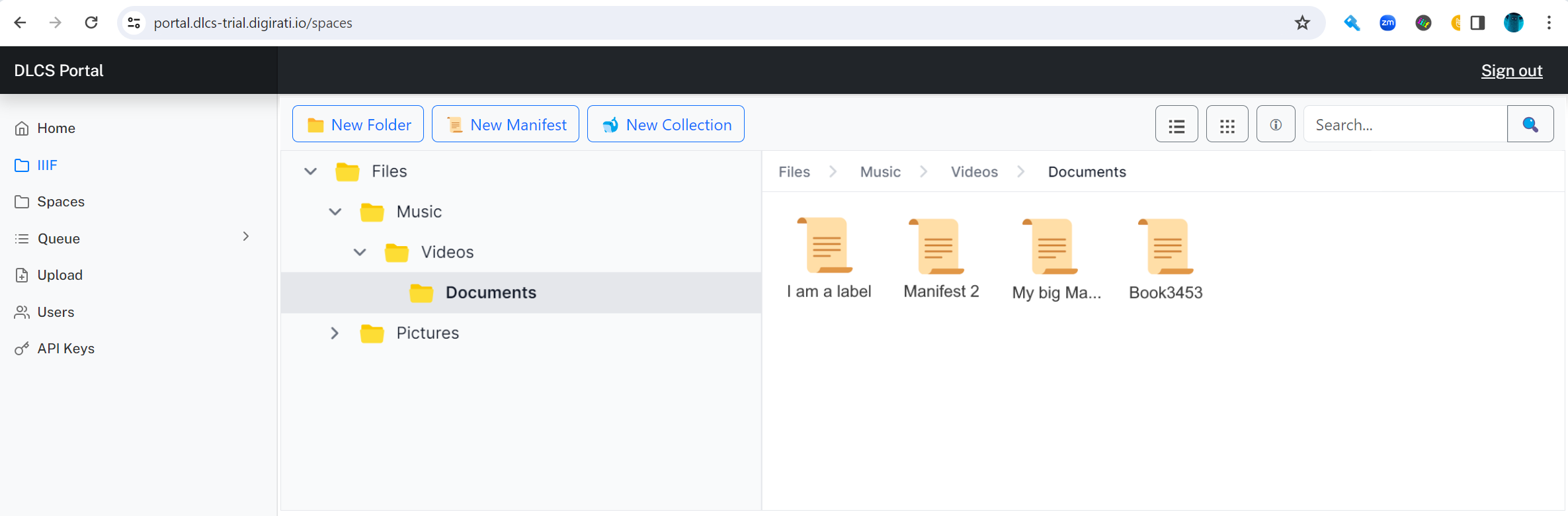
If possible we could use an off-the-shelf UI component for this, or at least partially. Example of UI component (opens in a new tab). We probably don't want to use the IIIF Explorer because although it partly overlaps in functionality, it's not as much as you might think.
The folders are used to organise your storage.
At any location within your IIIF storage, there are three different types of object you can create:
- 📁 A simple folder for organising content, that can contain any of the three things in this list
- 🐋 A IIIF Collection - A IIIF resource that contains Manifests, or further IIIF Collections
- 📜 A IIIF Manifest
The UI uses the term "folder" rather than "Storage Collection".
These are not the real icons! (although the folder one might be).
We need to design icons for IIIF Collection and IIIF Manifest. The straight IIIF logo is too noisy in this kind of interface, needs to be calmer.
Create a simple Manifest
For this you will need some images on your local computer, ready to upload. They can be any images for now, although ideally they are reasonably large - not little icons or thumbnails. Photographs from a smartphone would be fine. Later you will add some images from other locations.
Make a new folder at the root of your storage called quickstart, and then within that folder create a new Manifest:
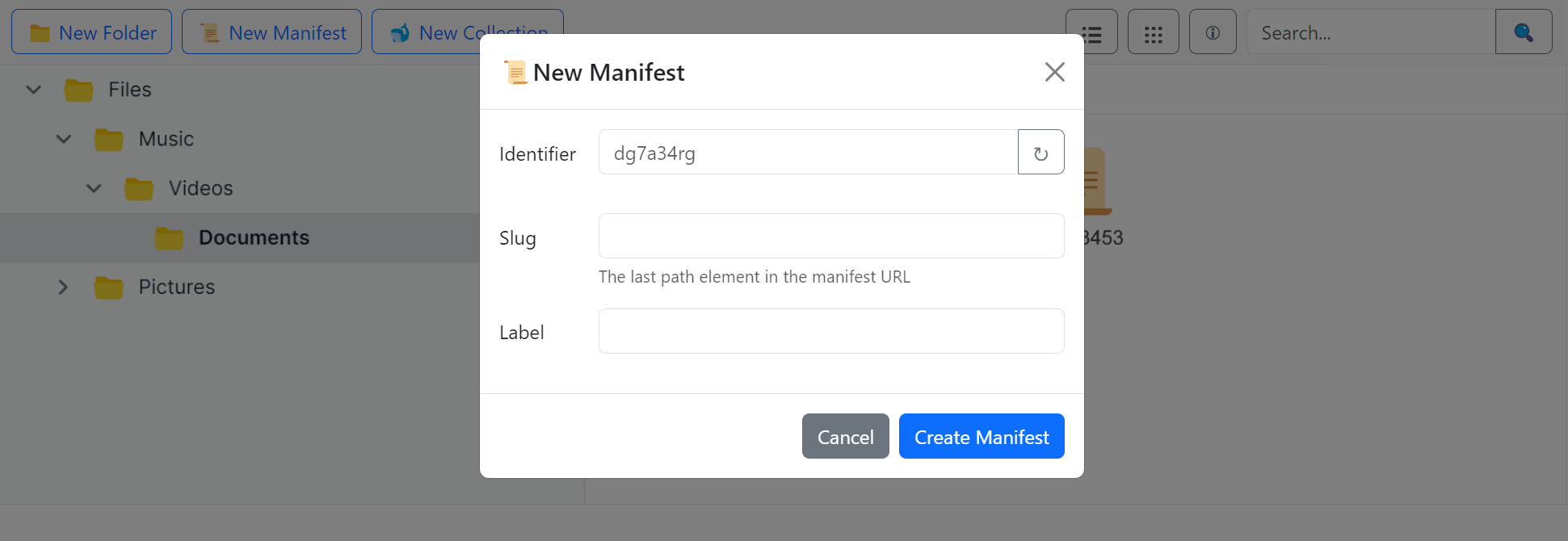
Both the folder creation and the manifest creation ask for two values - the slug, which appears in the public URL of your IIIF resources as a path element:
https://dlcs.io/iiif/this-is-a-slug/and-so-is-this/and-this.json...and the label, which appears in the public IIIF and also in the IIIF browser.
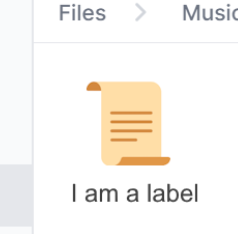
The Manifest additionally shows you the identifier it will assign within the platform to uniquely identify this manifest, independently of its location in the storage folders. You can hit ↻ to generate a different one if you want to.
The slug must be path-safe - no spaces or special characters. The the label can contain any characters, although must not start with a space (it will be trimmed if it does).
While the IIIF browser looks like a regular file system as you navigate through folders, and allows you to switch between grid and list views, once inside a Manifest it presents a different view: the Manifest's items.
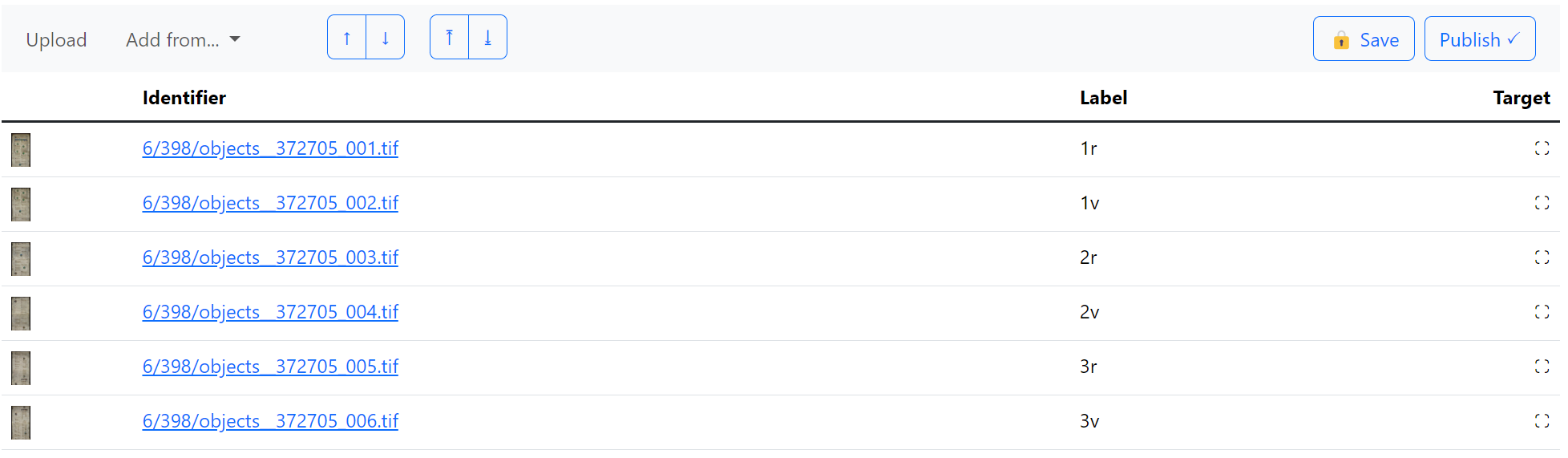
For simple manifests, the contents of this view appear as a list of assets (in this case, all images) that make up the manifest. However, each row is actually a Canvas, which can carry multiple images. The (see Canvases).
Once inside the manifest, you get a new toolbar:

Click Upload, which opens the upload tool:
Screen shot. Need a good file upload component that can:
- accept multiple files or single files
- accept a folder to upload
- show progress bars for concurrent uploads
- ideally, for reuse elsewhere, perform a client-side sha256 calculation for each file and pass to the receiver on the server to validate.
You can either drag your images onto the upload component, or select one or more images from your computer, or select a folder from your computer.
What if the user drags images directly onto the manifest grid? I think that's a valid upload too.
Adding images this way is convenient, but there is no guarantee of order - your selection order, and the order they arrive at the server, could be anything. By default, uploaded assets are included in the manifest by the alphanumeric order of their file names. Often, images that form a sequence will have ascending filenames, so this behaviour will usually be sufficient. If you make several uploads without making any adjustments to the order, the new assets will fit themselves into the alphanumeric order. However, once you either manually reorder, or save the manifest, that order becomes persistent, and any newly added assets are appended to the end of the list, still keeping to alphanumeric order within that new set.
You can re-order the images how you like to make sense for the manifest by selecting them individually or in groups, dragging them, or choosing move up / move down / move to start / move to end from the arrow buttons on the toolbar. Together, the automatic ordering behaviour and the manual ordering override should feel natural.
This ordering behaviour is entirely within the web application and possibly entirely client side, until the manifest, and therefore the order, is saved. That is, some client side flag knows the user has not yet adjusted the order, so additional assets can just slot in, perhaps shuffling other assets down. As soon as the order is adjusted by moving an asset in the list, even without the user hitting save, or as soon as the user hits save, the order is persisted in the client view, and then to the server (in the canvas_painting order).
Screen shot showing the canvas rows with multiple selections and the ability to move them around.
An auto-labelling tool would be good here, later. Even without, it should be easy to move from one label to the next. In this view the label editing control is a simple text input, not the full language map editor. A small CTA allows you to edit the label in the more sophisticated tool, which is likely to be rare for Canvas labels.
We also detect on save whether a Canvas label has a purely numeric value, and change the language to none.
Saving the Manifest
As you add assets, they are processed by the platform and are included in your manifest. These assets are immediately live and can be seen in preview. Every time you save the manifest it is made available for preview, but not published until you hit "publish", when your changes are available at the Manifest's public URL. While you have saved but not published changes, the manifest is locked, preventing others from editing it.
Assets you have added, but then decided are not needed, are removed from the manifest but not automatically from the platform as a whole. For any changes you make to the manifest that leave orphan assets, you will see a list after you save that gives you the chance to delete them.
Any Preview save persists a JSON document to the manifest S3 preview location, which is on a public URL. It does not update the DB though. Only Publish updates the DB and overwrites the actual S3 location. The preview S3 key is deleted until there is another change to be previewed.
Add manifest_context to the Asset? This is not an unnecessary backwards path that duplicates the canvas_paintings.manifest_id + canvas_paintings.asset_id relationship, which can reuse the same asset in multiple places. It's the context in which the asset was introduced. This, plus created, should give a reliable orphan deletion candidate list in most scenarios.
Discarding a Manifest
A Manifest discarded before publishing will result in all assets added within that manifest being deleted.
This is linked to whether assets are saved in space 0 or in a manifest-specific space. The latter makes it easier to report on orphans and offer the ability to delete them but makes using the same asset in another manifest trickier.
Adding other metadata
Your manifest has a label, and you can enhance this with different languages in the portal. You can also edit the following properties of the manifest, in the properties tab.
- metadata (label/value pairs)
- summary
- rights
You can also add additional resources to the manifest, and to individual canvases within the manifest, using the Adjuncts feature.
Switching to the Manifest Editor
The tools in the portal cover common, simple Manifest creation tasks. But for some manifests, they are insufficient. You might need to create more complex canvas layouts with multiple images or create more complex structures. For this, you can open the Manifest Editor. Any editing you do there is within the same Publish and Preview session.
(Sample Bootstrap Screen?)
Adding assets from other sources
In the above quick start, you added images from your own computer. But often, that's not where they are!
The Add from... menu items shows other places you can select and add assets from:
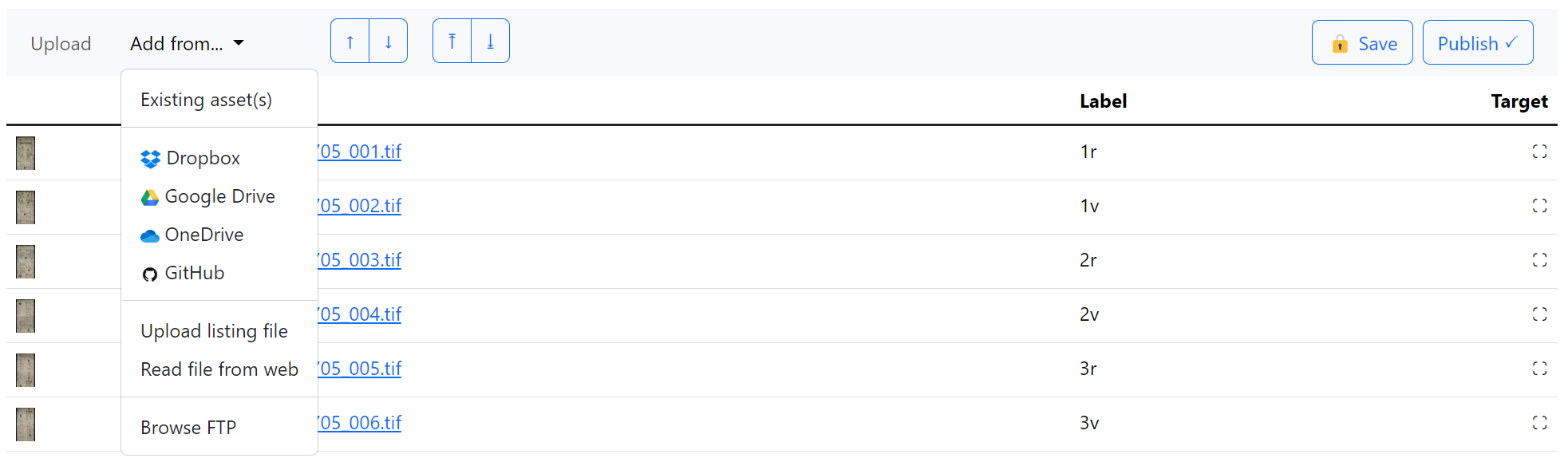
- Existing asset(s)
- Online storage
- Dropbox
- Google Drive
- OneDrive
- Public Github Repository
- Private Github Repository (coming soon)
- FTP Server*
- Upload listing file
- Spreadsheet (csv, xls, xlsx, ...)
- Text file
- IIIF Manifest
- METS file
- Read file from web
- Google sheet
- Google doc
- Excel Online
- Word Document
- IIIF Manifest
- METS file
- Direct URL of media (image, video etc)
- _Existing asset(s) launches a browser, starting at this manifest, that allows you to select other already-registered assets
- The Online Storage set of options involve opening a view into a storage location that you have access to (you will be asked for authentication credentials) and selecting some assets. The portal will load the assets, and arrange them in the manifest list, in the same way as when you upload them.
- Upload listing file asks for a single file that contains some form of sequence of asset URLs; this file is on your machine and you upload it. The implication is that the assets are in locations - "origins" - that the platform can fetch them from.
- Read file from web loads a single file from a URL you paste in (e.g., a Google Drive URL)
In these last two cases, the portal will read the file, and if successful, present back to you a tabular view of what it's going to do. It might ask for further information or clarifications. The most common type of further information is a prefix - if the origins are relative paths, it needs to know the absolute root URL.
Read file from web also has an additional feature - binding. If you generate a Manifest from an externally hosted sheet (e.g., in Google Drive), the platform remembers that sheet. next time you open the Manifest in the Portal it can check to see if they are still in sync, and give you the opportunity to sync if not. This never happens automatically! Too dangerous!
For more details on what the platform expects to find in these source listing files, see Importing.
For Read file from web, if the platform detects that the pasted URL is an image, AV file or some other Content Resource, it will ask you whether you want to:
- Register the content resource as an asset (and generate an image service, perform transcoding etc as appropriate)
- Just use the remote resource directly on the canvas without registering it (the platform won't serve it and can't offer additional services like auth for it).
We should probably discourage FTP access from the portal as it involves the portal knowing your FTP credentials, however briefly.
touched 2025-09-23T12:04:54